How to use Codex Sites: a step-by-step tutorial
A practical, end-to-end walkthrough of Codex Sites: add the plugin, write your first prompt, validate the build, save a version, then deploy.

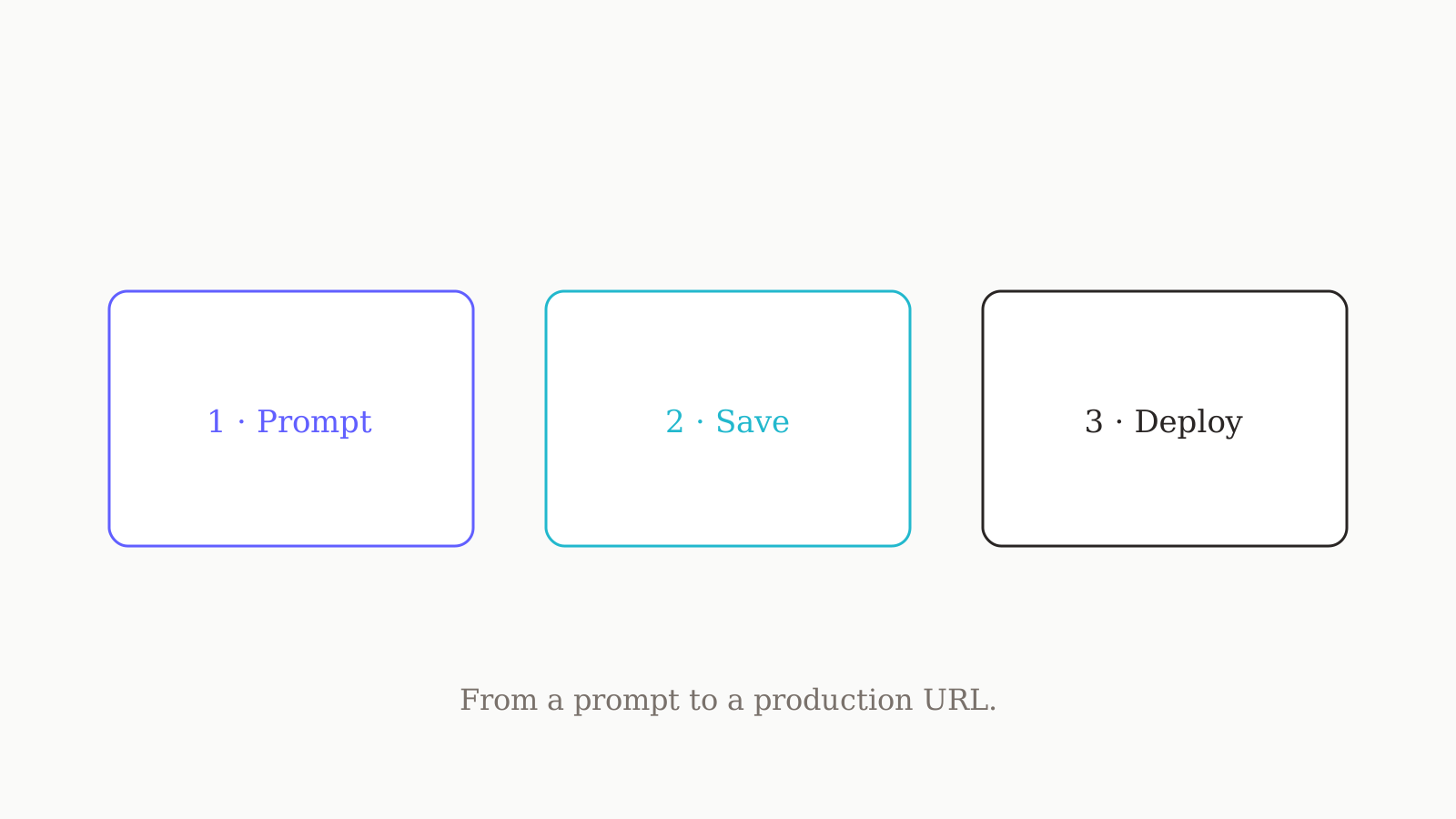
Codex Sites is the Sites plugin for OpenAI Codex, and using it end to end takes five steps: enable or add the plugin and start a new thread, describe the site to Codex while naming @Sites, ask Codex to validate that the build is compatible, save a reviewable version, then deploy the version you approved and collect its production URL. The one habit that matters most is saving before you deploy, because every Codex Sites deployment URL is live production — there is no throwaway preview link. This tutorial walks the whole path from zero to a deployed site, then covers how to manage it afterward.
Before you start
Two things have to be true before you type a prompt: your plan supports Codex Sites, and the plugin is installed.
Codex Sites is in preview, and availability is expanding. Per OpenAI's docs it launched on ChatGPT Business and Enterprise, with more plans rolling out during the preview. Business has it on by default; Enterprise needs an admin to enable it first.
| Plan | Codex Sites? | What you do |
|---|---|---|
| Business | Yes — on by default | Just add the plugin and start using it |
| Enterprise | Yes — after enablement | Admin enables it via RBAC in ChatGPT admin settings, then add the plugin |
| Other plans | Rolling out in preview | Check the feature-availability page for your plan |
Because availability is still rolling out, treat the official feature-availability page as the live source of truth rather than this table.
To add the plugin, open Plugins in the Codex app and choose "Add to Codex," or run /plugins in the CLI and choose "Install plugin." Find Sites, add it, and then start a new thread — the plugin only takes effect in conversations opened after you install it. Pricing-wise, there is nothing to set up: Sites is free while in preview, and OpenAI has said pricing details will be published later.
Step 1: describe the site (@Sites)
In a fresh thread, tell Codex what you want and name @Sites — especially when the task should end in a hosted deployment. Naming the plugin tells Codex this is a Sites job, not generic code generation.
The prompt shape that works is audience + core experience + required data: who uses it, what they do, and what has to persist between visits. Here is the new-project example straight from the docs:
@Sites Build a project request dashboard for my operations team. Let team members submit requests, see who owns each one, update the status, and filter the list. Require people to sign in with their workspace account, and keep the request data saved between visits.
That single request implies sign-in, persistence, and a real data model. Codex provisions those pieces rather than making you wire them up. A new starter can begin with no project_id; Sites adds one once it provisions the project, and records the linkage in .openai/hosting.json. A minimal hosting file with a database binding and no file storage looks like this:
{ "project_id": "<project-id>", "d1": "DB", "r2": null }
Only ask for storage when product data must persist — D1 for a relational database, R2 for files, or both for files with searchable metadata. Skip it for temporary UI state.
Step 2: validate the build
Codex Sites hosts builds that produce Cloudflare Worker-compatible output as ES modules. A new project from the recommended Sites starter already fits. For anything else — or just to be sure — ask Codex to check before you go further.
@Sites Check whether this project is compatible with Sites and make any required changes.
If the build is not compatible, this is where Codex tells you and adjusts it — cheaper than discovering it at deploy time. Resist the urge to deploy straight from here; the next step is the review gate.
Step 3: save a version to review
Codex Sites splits "ship a site" into two deliberate stages, and save is the first. Saving builds a deployable candidate tied to your current Git commit. It does not put anything in front of users — it is your chance to inspect the build before it is live.
| Stage | What it does | Is it live? | When to use it |
|---|---|---|---|
| Save | Builds a version, ties it to the source Git commit | No — reviewable candidate only | Pressure-test a build before anyone sees it |
| Deploy | Publishes an approved saved version | Yes — returns the production URL | The saved version passed review and you want it live |
Ask Codex to save a version, then review it. Walk the core flow from Step 1: can someone sign in, do the thing, and find their data on a second visit? Ask Codex to inspect the saved version and report what it built. If something is off, refine the prompt and save again — saving is free and repeatable, deploying is the commitment.
Step 4: deploy and get the URL
Once a saved version passes review, deploy that version. Deploying publishes a saved candidate and reports the production URL. Here is the deploy prompt from the docs for an existing project:
@Sites Deploy this project. Check whether it is compatible with Sites, make any required changes, and give me the deployment URL.
Codex returns a production URL. Remember what that means: it is live. There is no separate "preview" environment that quietly expires — which is exactly why the save-and-review step exists. Skip it and you just shipped to production without a dry run.
Step 5: manage the live site
A deployed site is not a fire-and-forget artifact. Two things to handle:
Access. New sites should stay limited to the owner and admins until you have reviewed them in production. Set the audience before you share the link. Codex Sites has three access modes:
| Mode | Who can reach it | Use it for |
|---|---|---|
| Owner and admins | Just you and workspace admins | A new or unreviewed site |
| Workspace | Everyone in your workspace | An internal tool for the whole team |
| Custom | A specific set of people | A limited or external audience |
Set secrets and environment variables in the Sites panel, never in .openai/hosting.json, and never commit them.
Coming back later. Open Sites in the app sidebar to return to your projects. From there you can ask Codex to inspect saved versions, check deployment status, or change access. Each new deploy creates a fresh production version, so your save-then-review habit carries forward to every update, not just the first launch.
The whole flow at a glance
| Step | Action | Result |
|---|---|---|
| 0 | Confirm plan, add the plugin, start a new thread | Codex Sites is active |
| 1 | Describe the site, name @Sites | Codex builds it; a project is provisioned |
| 2 | Ask Codex to validate compatibility | Worker-compatible build confirmed |
| 3 | Save a version, review it | A reviewable candidate, not yet live |
| 4 | Deploy the approved version | A live production URL |
| 5 | Set access, return via the sidebar | A managed, shareable site |
Where the thinking happens first
Codex Sites turns a good brief into a hosted site fast. The weak link is rarely the build — it is the brief. A vague prompt produces a vague dashboard, and because every URL is production, a sloppy spec costs you a real deploy. That is the part worth doing before you ever type @Sites. We use oran.chat to draft the site brief and pressure-test it across GPT, Claude, and Gemini, branching the prompt instead of overwriting it, so the spec we hand Codex is the one that survived three sets of objections. If you keep one instruction set in play across those models, see the system prompt that works across GPT, Claude, and Gemini.
For the bigger picture, start with what Codex Sites is, and for the review gate specifically, see save vs deploy in Codex Sites. The authoritative reference is the Codex Sites documentation. For more like this, see Playbooks.